How to use Joblancer as a candidate
This guide takes you through each step, from creating your account to tracking the jobs you applied for. The pictures are real screens from joblancer.app. The dashboard and CV check pictures use a sample account or a sample CV with made-up details, so no real person is shown.
Check your CV readiness (free)
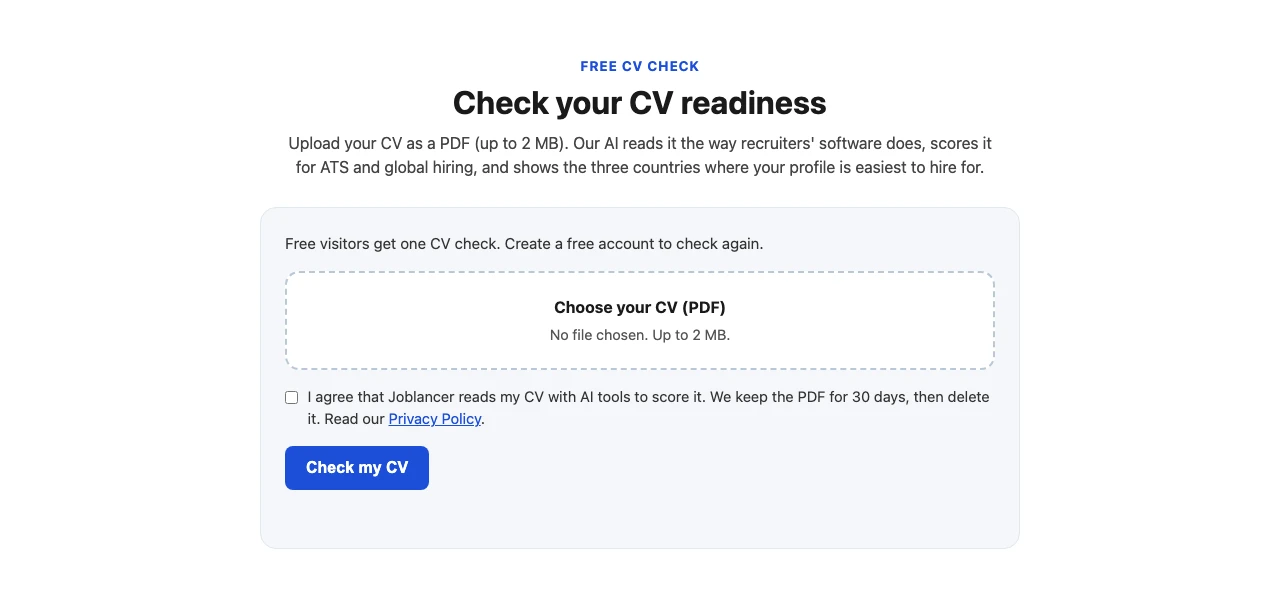
You do not need an account to check your CV. The check is on the home page, directly under the first banner. It tells you how well your CV reads to recruiting software, how strong it looks to a recruiter, and the three countries where your profile is easiest to hire for.
- On the home page, select Choose your CV (PDF) and pick your file. It can be a PDF, DOC or DOCX of up to 2 MB. Scanned files without selectable text cannot be read, so save a text version instead.
- Tick the box that agrees we read your CV with AI tools, then select Check my CV. The check takes about 20 seconds.
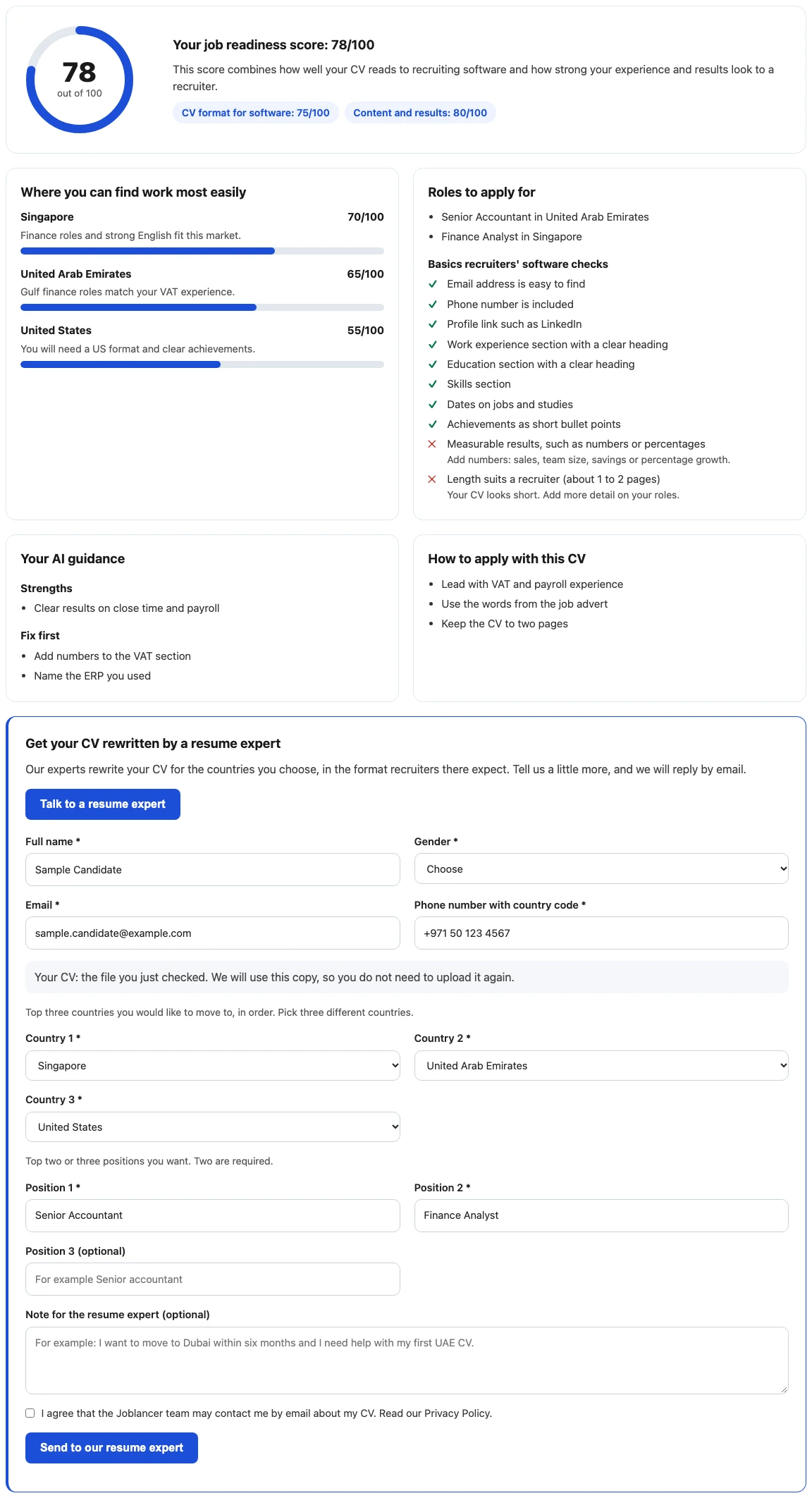
- Read your results. You see one job readiness score out of 100, a score for CV format and a score for content and results, the top three countries, the roles to apply for, a checklist of basics recruiters' software looks for, and guidance on what to fix first.
Limits and your data
- Without an account: you get one check per browser, and only one check per internet address in a day. This stops one team or office from uploading many CVs. Sign in to check again.
- With an account: sign in with your own email address. You get one check a day and three checks a month.
- Your PDF and check are kept for a limited time, then deleted. Read our Privacy Policy for the full details.
Talk to a resume expert
After your results, select Talk to a resume expert. The form uses the CV you just checked, so you do not upload it again. Fill in:
- your full name, gender, email address and phone number with the country code,
- the two countries you would like to move to, in order, which must be different,
- two positions you want, both required,
- an optional note for the expert, and the box that lets our team contact you.
Select Send to our resume expert. A resume expert replies by email within 1 to 3 business days. The expert then rewrites your CV for the countries you chose.
Tip: the scores are a guide. Read the fixes first, then check the market that scored best. The guidance explains how to apply in that market.
1 Create your account or sign in
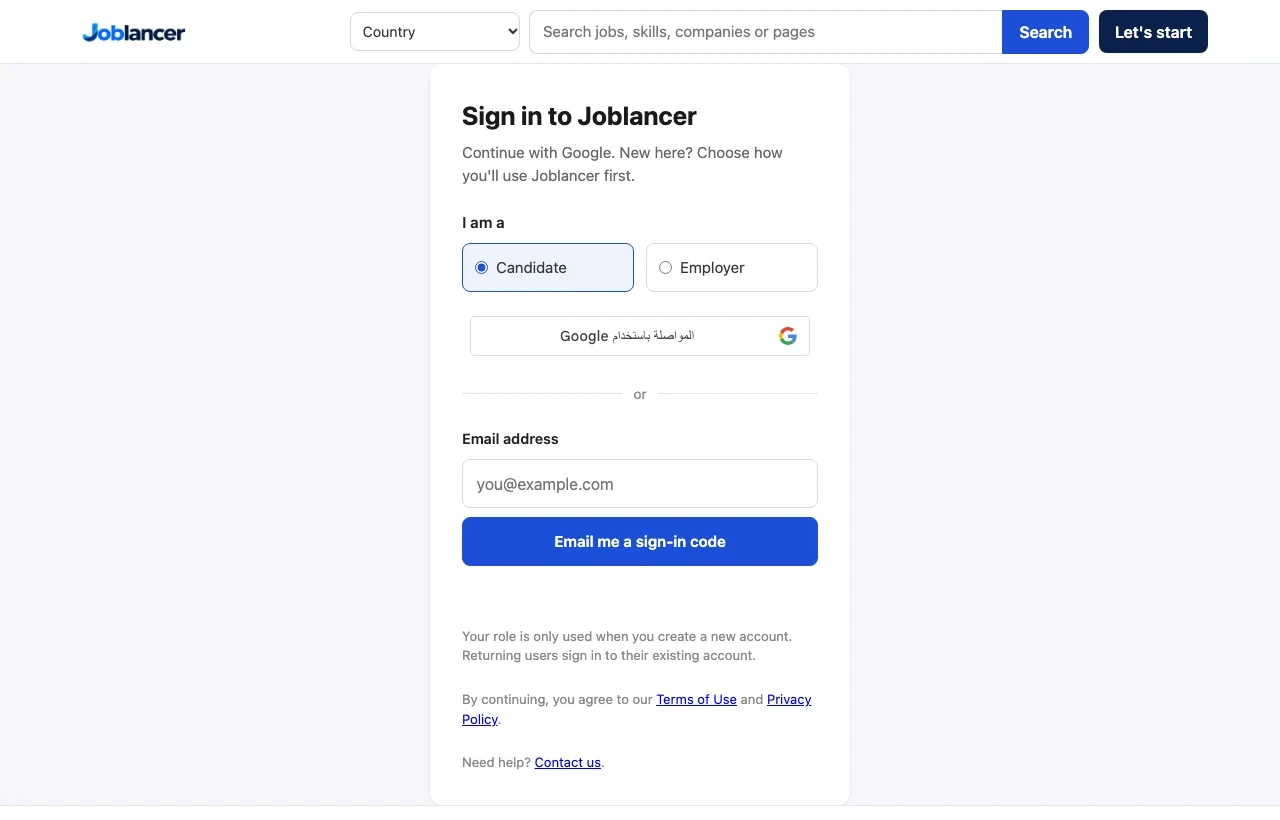
- Open Sign in. Leave Candidate selected.
- Choose one of the two ways in:
- Continue with Google. Pick your Google account and you are in.
- Email me a sign-in code. Type your email address, then type the 6-digit code we send you. The code expires after 15 minutes.
- Your dashboard opens. The role you choose only matters when you create a new account. Returning users sign in to their existing account.
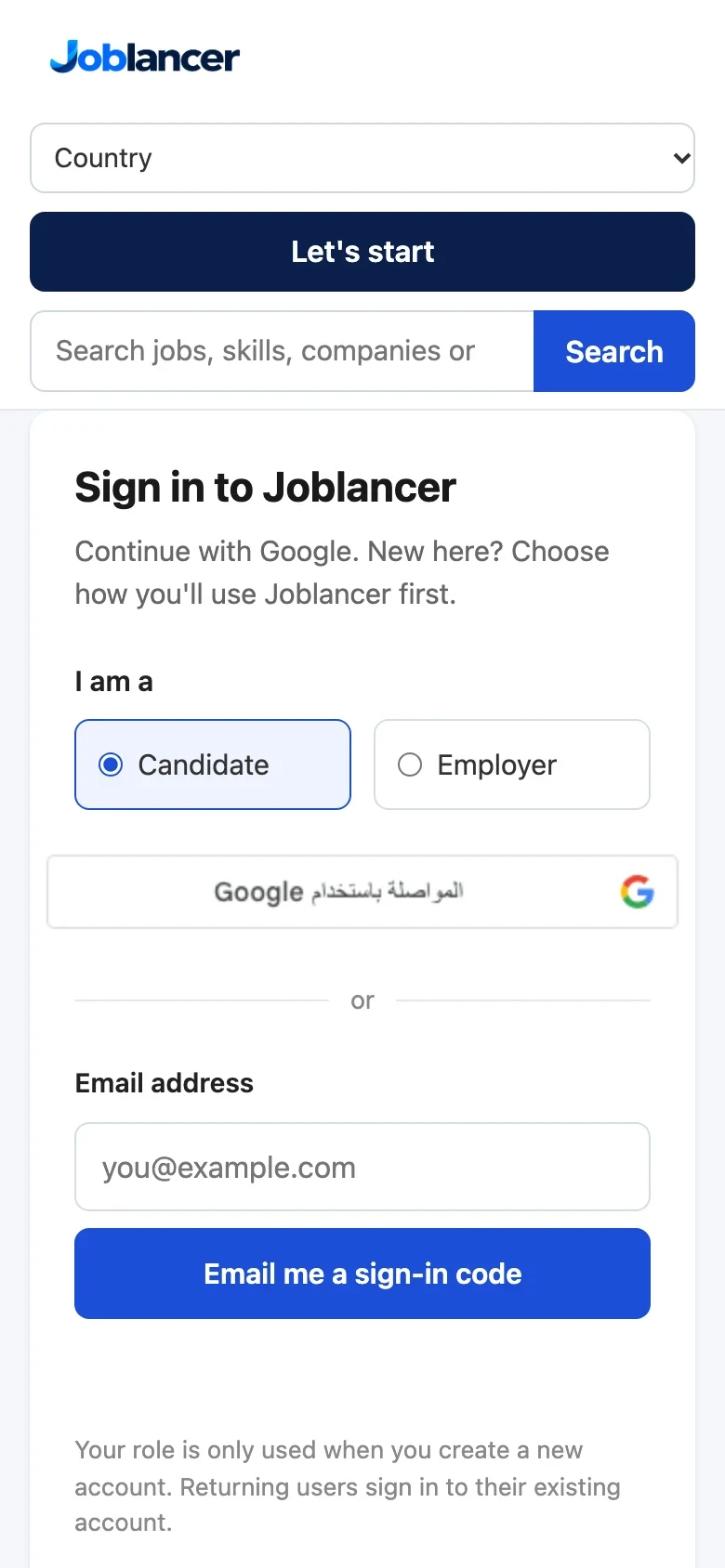
Good to know: your session lasts 30 days, and each visit renews it. Check your spam folder if the sign-in code does not arrive.
2 Complete your profile
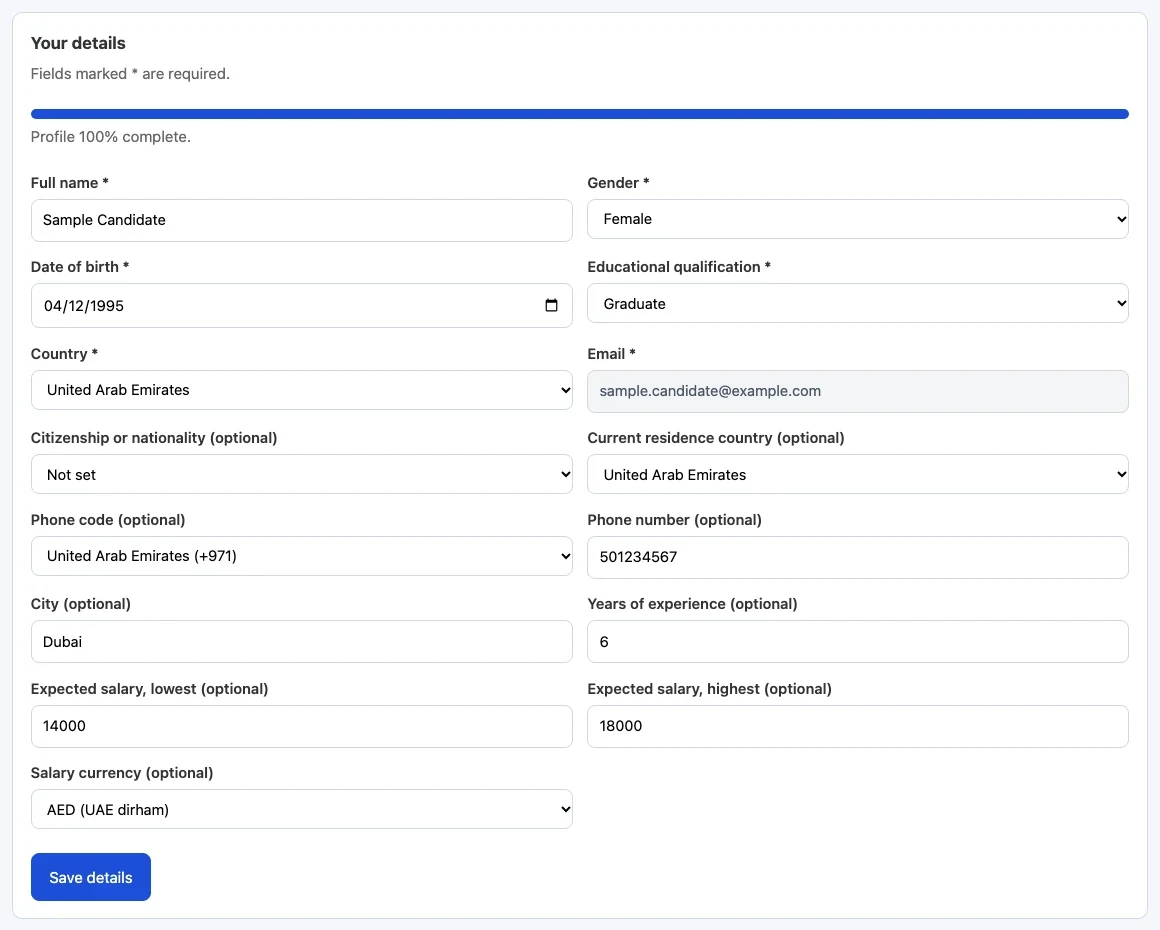
Open Dashboard, then the Profile tab. Fields marked * are required: full name, gender, date of birth, educational qualification, country and email. Your email comes from your sign-in and cannot be changed here.
You must complete these required fields before you can apply for a job. The progress bar at the top shows how complete your profile is.
The optional fields help employers decide whether to contact you: citizenship, country of residence, phone number, city, years of experience and your expected salary range. Choose your country first. The phone code then fills in on its own.
You can also add a profile photo. Use a JPG, PNG or WebP file. Photos over 500 KB are reduced automatically before they are saved.
3 Add your CV
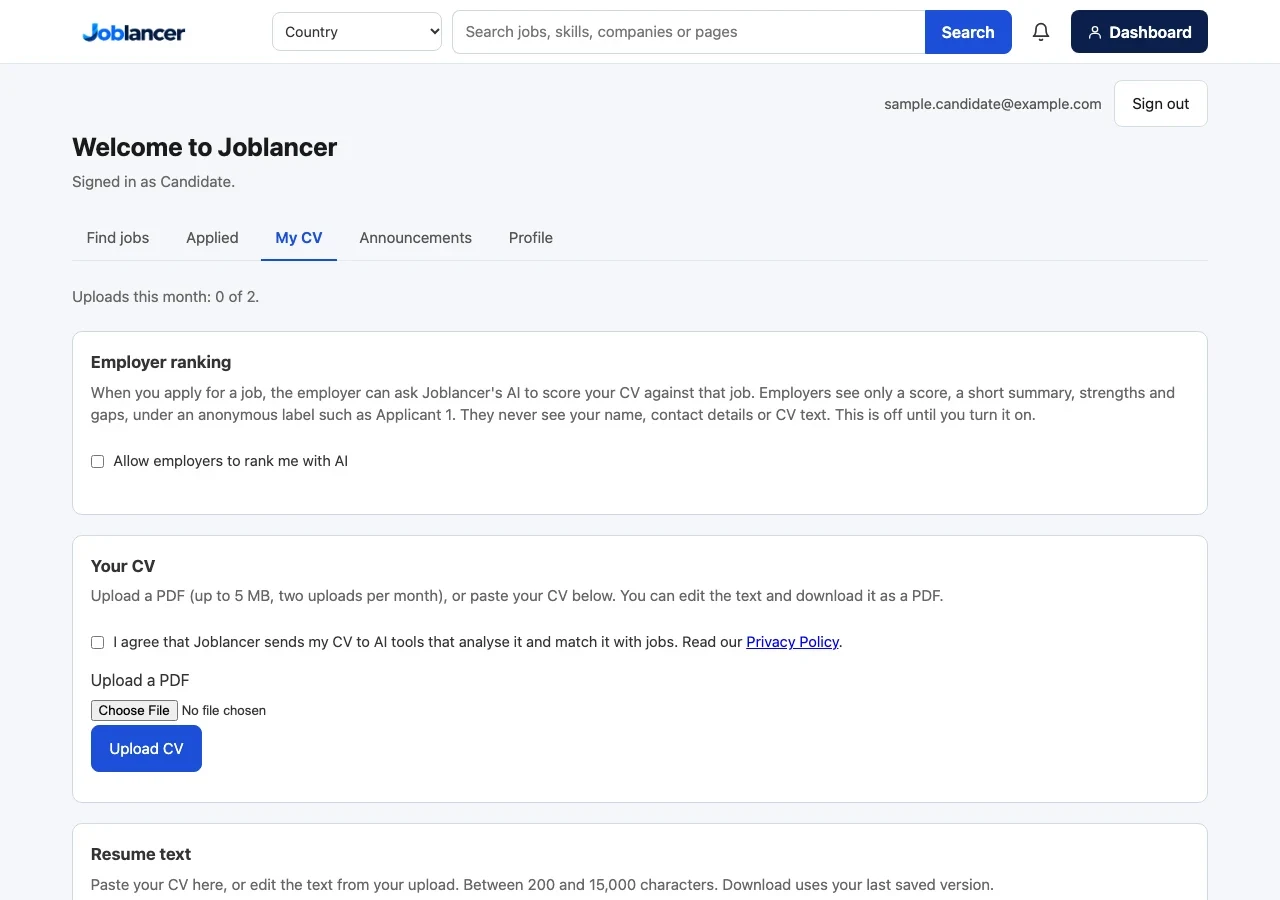
Open the My CV tab. You have two ways to add your CV, and you can use both:
- Upload a PDF. The file can be up to 5 MB. You can upload two PDFs per month.
- Paste the text. In Resume text, paste or edit your CV. It needs between 200 and 15,000 characters. Select Save changes when you are done.
Before Joblancer's AI tools can analyse your CV, tick I agree that Joblancer sends my CV to AI tools. The box links to the Privacy Policy, so read it first if you want to know what happens to your CV.
You can select Download PDF to get your CV as a PDF. An uploaded PDF is deleted automatically on the date shown under the upload. Your resume text stays until you delete it with Delete my resume.
4 Choose whether employers can rank you
Employer ranking is in the first box of the My CV tab. It is off until you turn it on.
When it is on, an employer who receives your application can ask Joblancer's AI to score your CV against that job. The employer sees a score, a short summary, strengths and gaps. You appear under an anonymous label such as Applicant 1. Employers never see your name, contact details or CV text.
Applicants are scored only when they choose to be ranked, and groups with fewer than 5 people are hidden.
5 Optional: get the verified badge
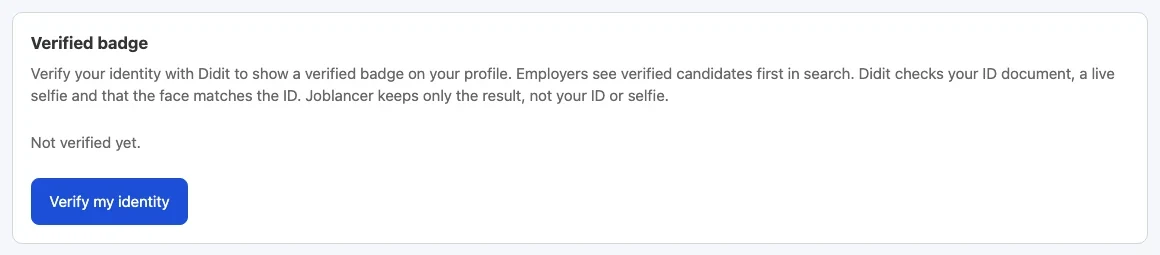
The verified badge tells employers that your identity was checked. Employers see verified candidates first in search. The check is optional, and nothing is locked if you skip it.
- Open Dashboard, then the Profile tab. Find the Verified badge box.
- Select Verify my identity. You are sent to Didit, our identity check provider.
- Follow the steps. Didit checks your ID document, takes a live selfie and checks that the face matches the ID.
- We email you the result. When it is approved, your profile shows the verified badge. If it is declined, you can try again from the same box.
Joblancer keeps only the result. It does not keep your ID or your selfie.
6 Decide who can see your profile
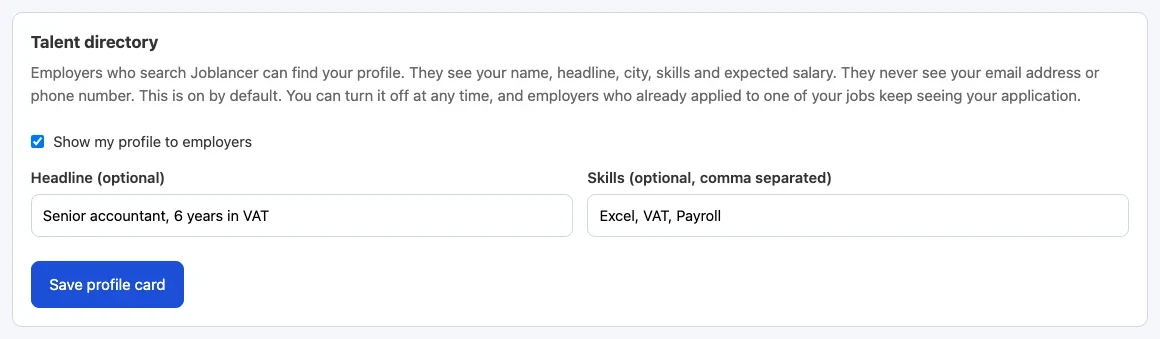
The talent directory lets employers who search Joblancer find your profile. It is on by default. Employers see your name, headline, city, skills and expected salary. They never see your email address or phone number.
- To hide your profile, untick Show my profile to employers. Joblancer asks you to confirm, then saves the change straight away.
- To change your headline or skills, edit the boxes and select Save profile card.
Employers who already received your application keep seeing it, even if you hide your profile.
7 Find jobs
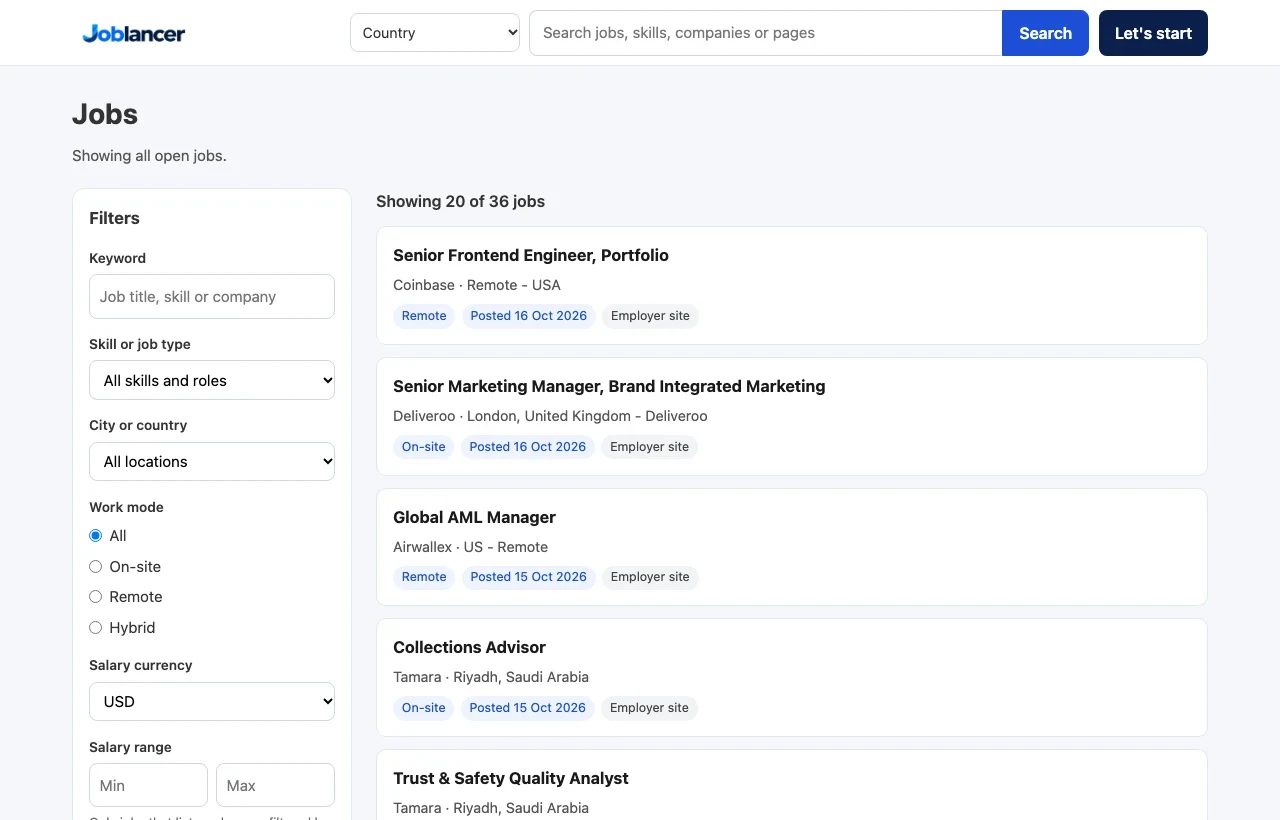
You can browse jobs without an account. Open the Jobs page, which lists open jobs from employers and from employer websites. Type a job title, skill or company in the search box. Use the filters on the left to narrow by country, work mode, job type and salary.
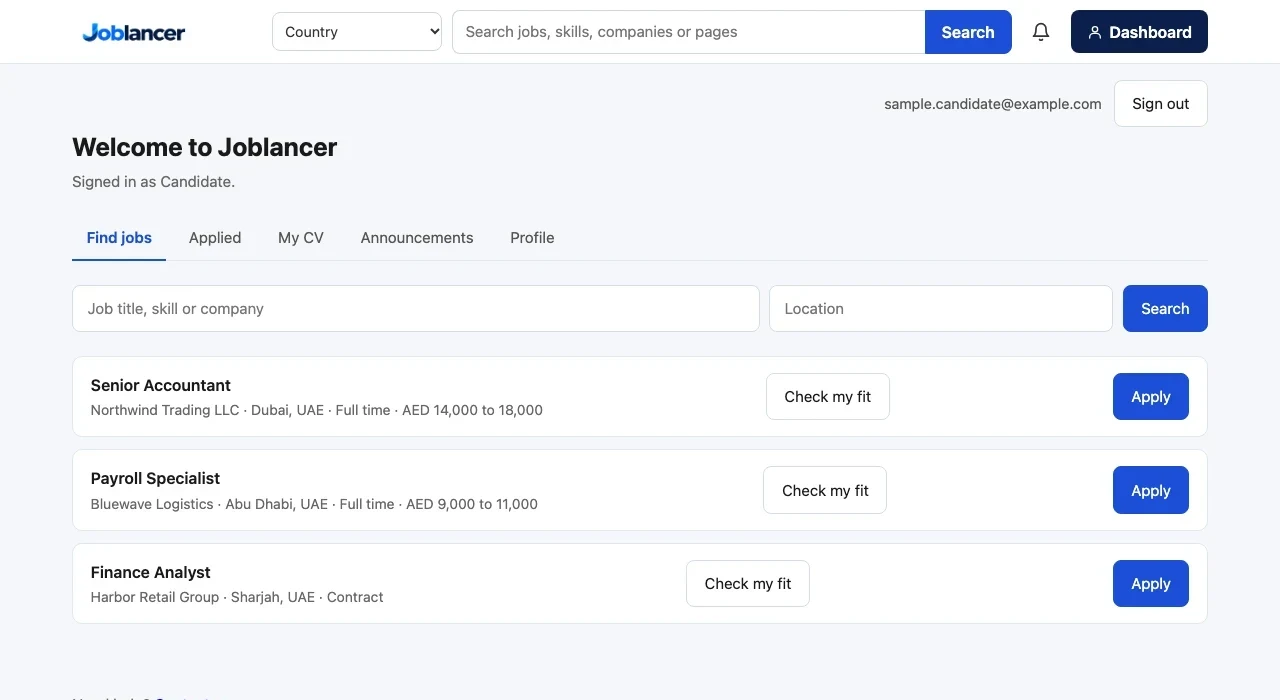
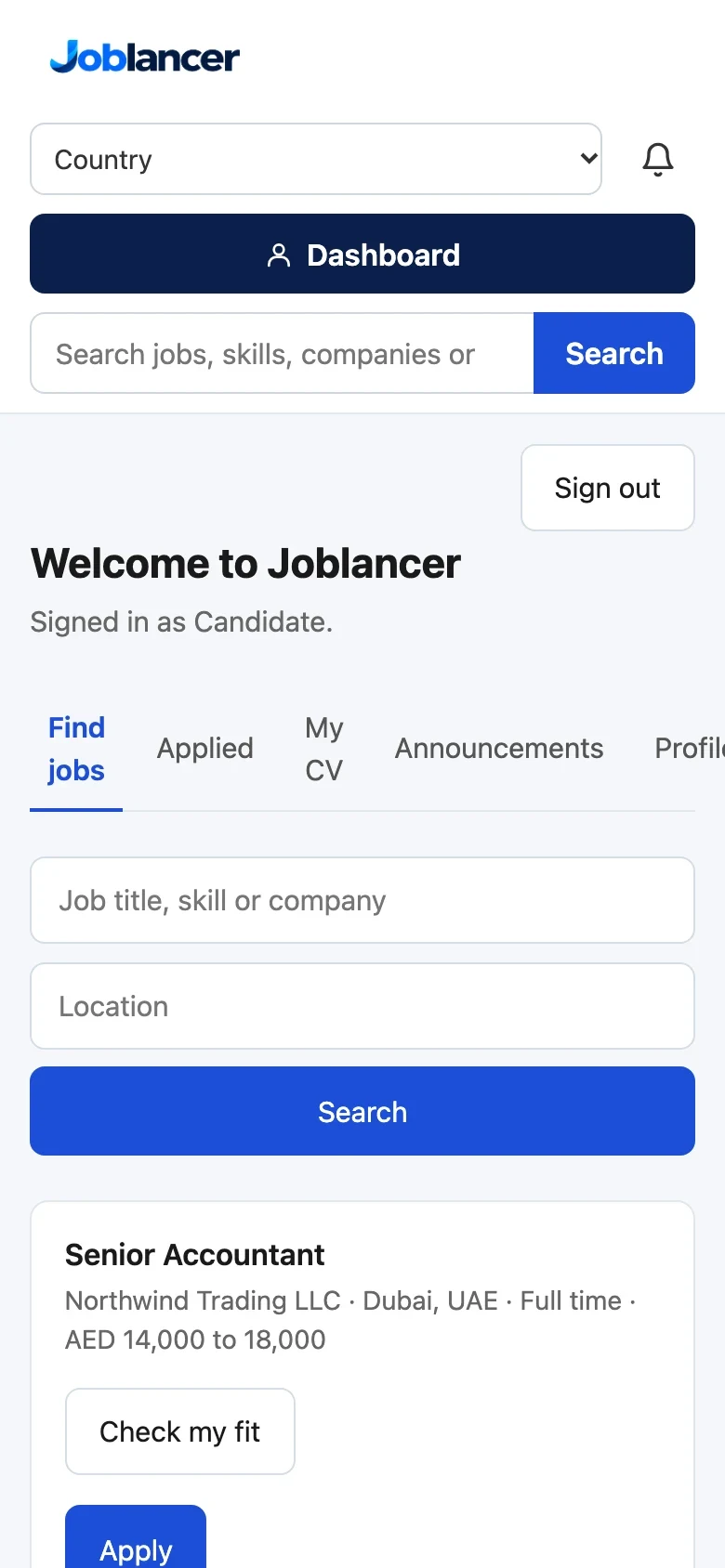
The Find jobs tab in your dashboard shows the jobs posted on Joblancer. Use the two boxes, job title and location, then select Search.
8 Read a job and check where you apply
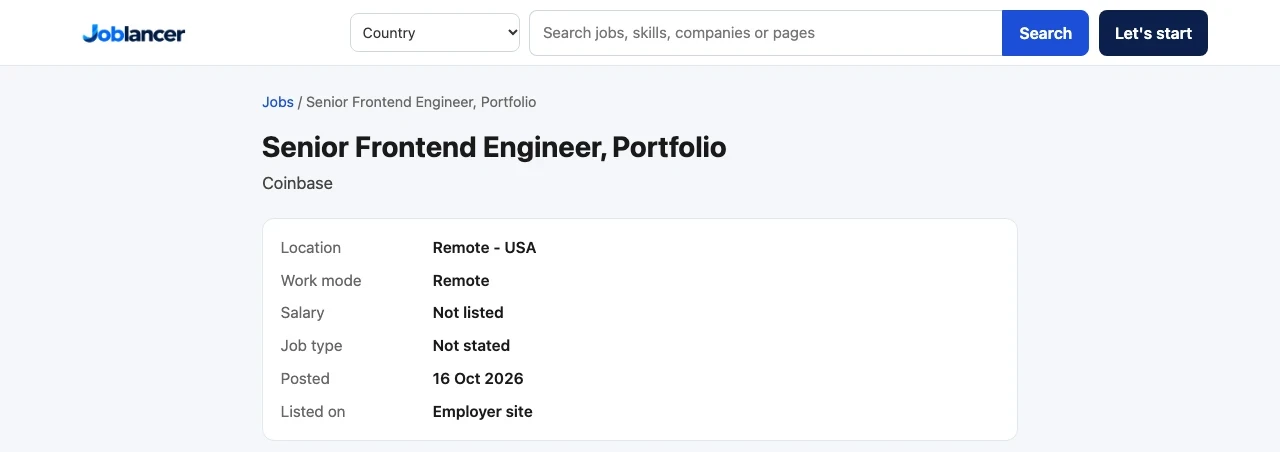
Select a job title to open its page. The facts box at the top shows the location, work mode, salary, job type, the date it was posted and Listed on.
Listed on tells you where your application goes:
- Employer site. Select Apply now to open the employer's own page. Joblancer does not store that application.
- Joblancer. Select Sign in to apply, then apply from your dashboard, as explained in step 10.
Stay safe: check the employer's own website before you share personal details. Never pay a fee to apply for a job.
9 Check your fit
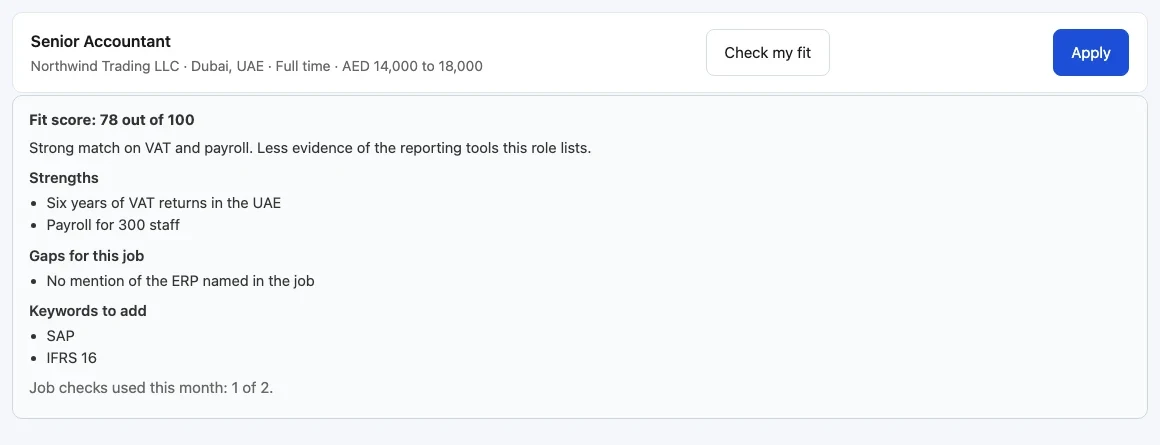
The fit check compares your saved CV with one job. You can run it from the Check my fit button in your dashboard, or from Check your fit on a job page. You can run 3 checks per month.
- Select Check my fit on the job you want.
- Read the message and select OK. It tells you that your profile details go to AI tools for this check.
- Read the result. It shows a fit score out of 100, a short summary, your strengths, the gaps for this job and keywords to add.
The score is a guide to help you decide. It is not a decision by the employer. Add a keyword to your CV only if it is true for you.
10 Apply
Apply on a Joblancer job from the dashboard. Before you start, your profile must be complete and your CV must be saved.
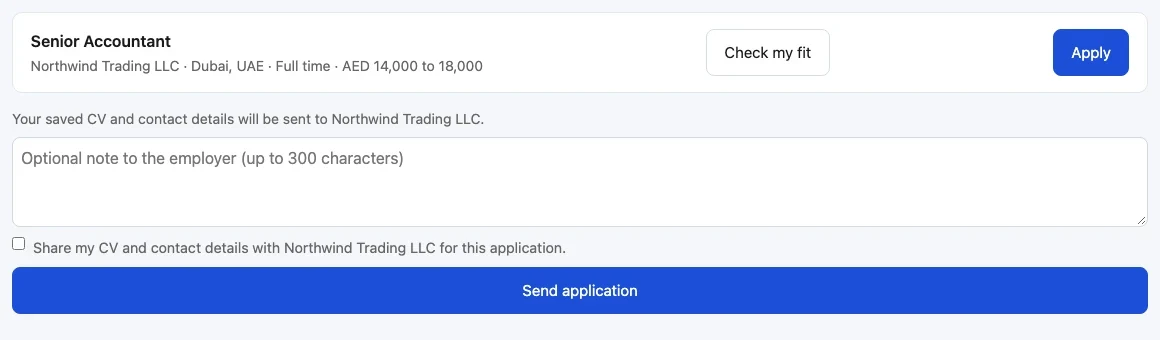
- Select Apply on the job. A panel opens under the job.
- Optional: write a note to the employer. It can be up to 300 characters.
- Tick Share my CV and contact details with the company. The application cannot be sent without this tick.
- Select Send application. The button changes to Applied.
If the application does not send, the page tells you what to fix:
- Save your CV in the CV tab before you apply.
- Complete your profile before you apply.
- Tick the box to share your CV with this employer.
11 Track your applications
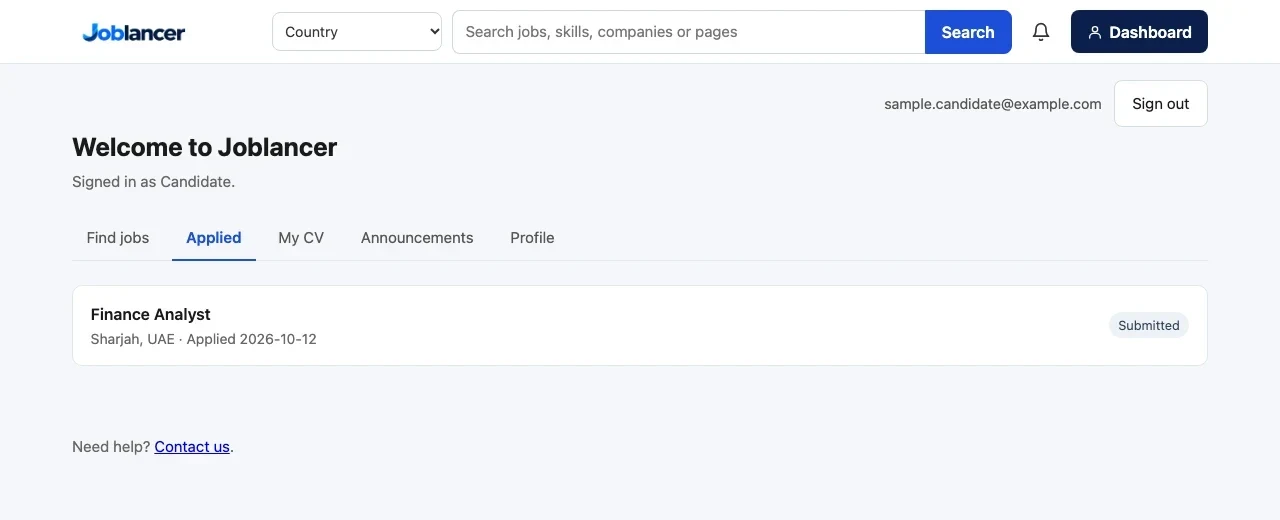
The Applied tab lists every job you applied for. Each row shows the job title, the location, the date you applied and the status, such as Submitted. You cannot apply twice to the same job.
The bell icon in the header shows your notifications. Select it to read them.
Questions candidates ask
Do I need to verify my identity to apply for a job?
No. The identity check is optional. A verified badge helps your profile stand out, but you can apply for jobs without it.
How many fit checks can I run?
You can run 3 fit checks per month. The page shows how many you have used.
Why can I not send my application?
Three things must be in place: your profile must be complete, your CV must be saved in the My CV tab, and you must tick the box that shares your CV and contact details with the employer.
Can I hide my profile from employers?
Yes. Open Profile and untick Show my profile to employers. Employers who already received your application keep seeing it.
Can I delete my CV?
Yes. In My CV, select Delete uploaded file to remove the PDF, or Delete my resume to remove the resume text.
How long do I stay signed in?
Your session lasts 30 days. Each visit renews it.
I did not get my sign-in code. What should I do?
Check your spam or junk folder. The code expires after 15 minutes, so request a new one if it has passed.
Can I check my CV without an account?
Yes. You can check one CV per browser without signing in. Signed-in members get one check a day and three a month.
How long do you keep my CV from the readiness check?
The PDF and the check are deleted after a limited time. Read the Privacy Policy for the details.
Should I pay anyone to apply for a job?
No. Joblancer does not charge job seekers any recruitment or hiring fees. Never pay a fee to apply for a job on Joblancer.
Still stuck?
Read the Help Center, or send us a message and we usually reply within 2 to 3 business days.